Connecting your inbox
Connect Gmail, Outlook, or any IMAP account in a couple of clicks.
Connect your email
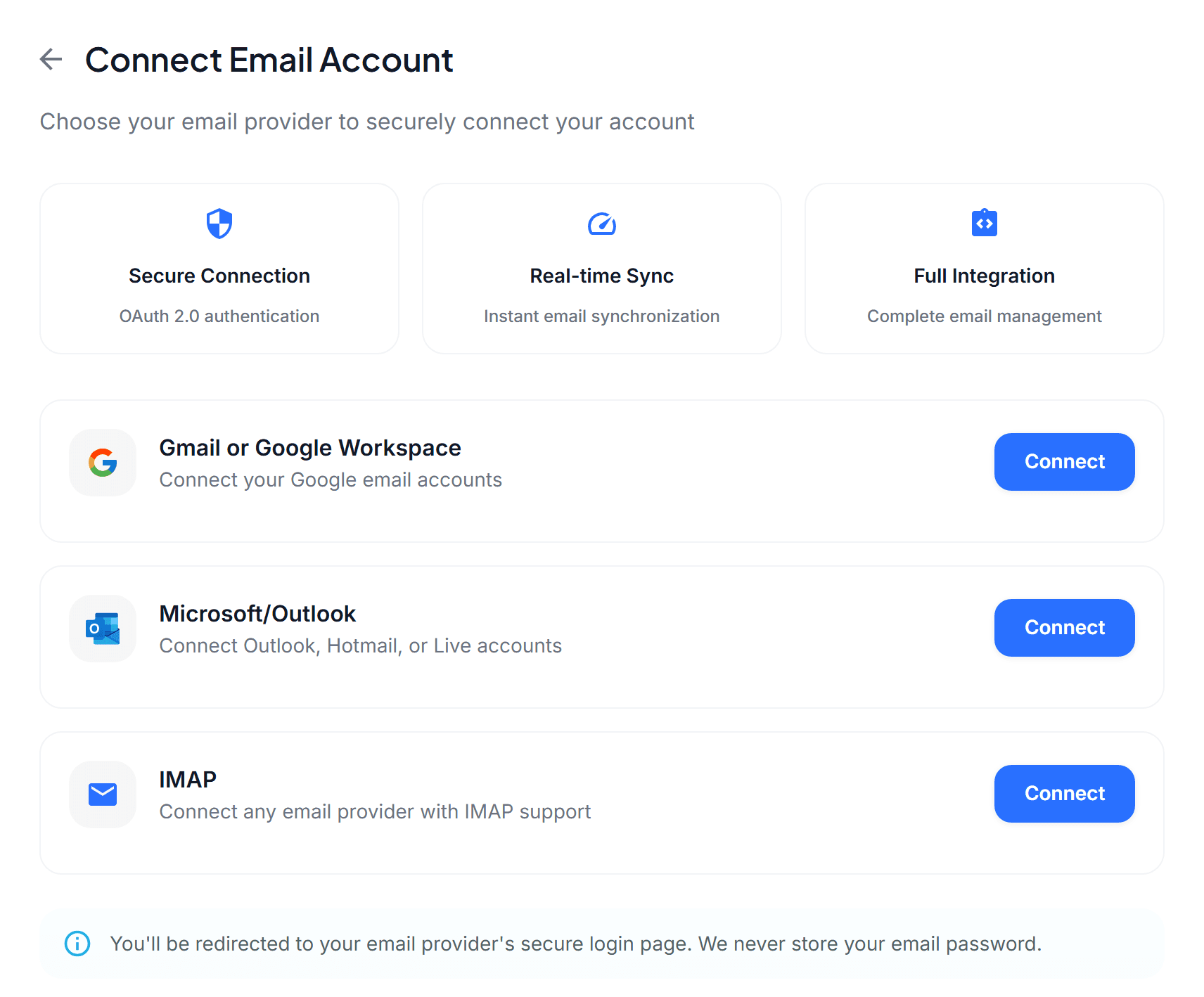
Go to Account → Email and click Add Email Account. If you haven’t connected anything yet, LetterLeaf takes you straight to this screen after sign-up.
Pick your provider: Gmail or Google Workspace, Microsoft/Outlook (Outlook, Hotmail, or Live), or IMAP for any other provider.
Click Connect. You’ll be sent to your provider’s own sign-in page to approve access. LetterLeaf never sees or stores your email password.
If your workspace has more than one person, you’ll first be asked Who can access this inbox? Choose Just me to keep it private, or My organization to let the workspace owner read and manage it. You can change this later in the inbox settings.
What happens next
Back in LetterLeaf you’ll see Setting up your inbox. LetterLeaf imports your latest 100 emails and your sent replies, then analyzes them. This usually takes under a minute.
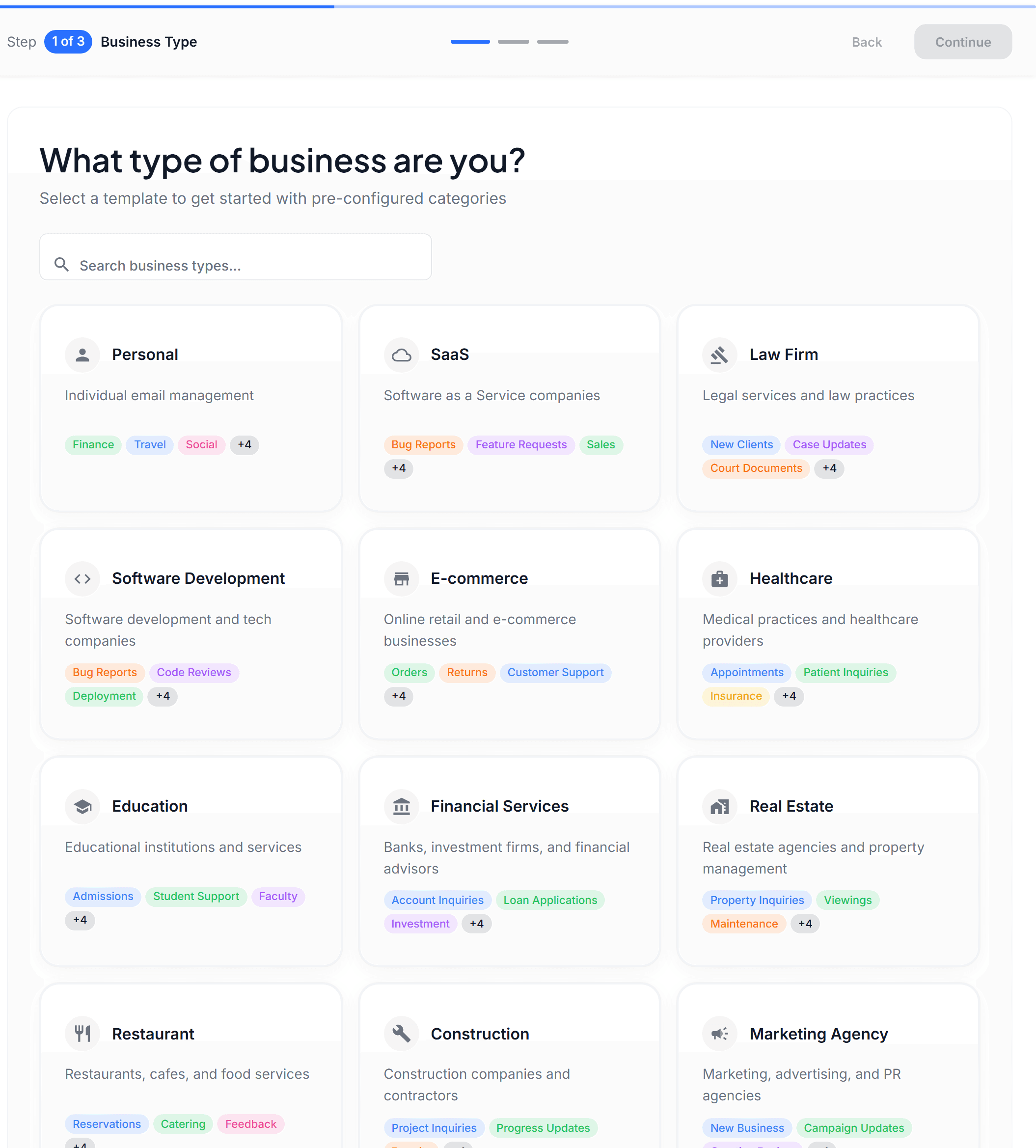
Once the import is done, a banner asks you to Set up categories. That’s the step that turns on smart sorting. See Setting up AI categories.
If the connection drops
When a provider connection expires, a red warning triangle appears next to the account in the mail sidebar. Click it to reconnect. Your categories, sharing, and settings are kept.
An active plan or free trial is required to connect an inbox.
Still need help?
Can’t find what you’re looking for? Send us a message and we’ll get back to you within a day.